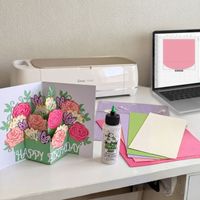
MAKE YOUR OWN BUNDLE - BUY ANY 3 SVGS - GET 30% OFF

Crafting Joy: The Bella Carta Blog

Hi There!

I LOVE paper crafting! Over the years I've found a few tips and tricks to enjoy it even more. 

Below are Tutorials, FAQs, Blog articles and other resources that I hope will help you get the most out of paper crafting, whether you are a newbie or an "old hand" at working with paper.

Laura


3D Paper Crafting & SVGs Made Easy (Tech & Fundamentals)

Step-by-Step Projects & Inspiration:  StartedStep-by-Step Projects & Inspiration:  Started
Step-by-Step Projects & Inspiration: Started

Project Instructions

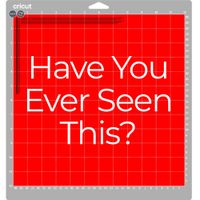
<p>How To Avoid the RED MAT in Cricut</p><p>How To Avoid the RED MAT in Cricut</p>

How To Avoid the RED MAT in Cricut

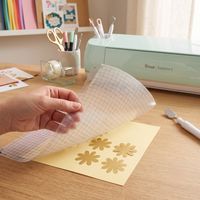
Step by step instructions on setting score lines


If you’ve ever uploaded an SVG file and hit "Make It" in Cricut Design Space only to see that dreaded red mat with all the scattered lines, you aren’t alone! It’s one of the most common hiccups when working with SVG files in Cricut Design Space.

Usually, this happens because the software thinks your score lines are meant to be cut lines, or it doesn't realize those lines are supposed to stay stuck to your project. Don't sweat it—here is a quick, friendly guide to getting those files fixed and your project back on track.


<p>FAQs:</p><p>FAQs:</p>

FAQs:

Find solutions for paper craf cutting and software issues with Silhouette, Cricut, Brother ScanNCut and others. Find craft ideas for hand craft gifts, cricut projects, 3d svg files, and pop up card svg setups.

The Ultimate 3D Paper Crafting Glossary: Your Friendly Guide to Cricut  Silhouette TermsThe Ultimate 3D Paper Crafting Glossary: Your Friendly Guide to Cricut  Silhouette Terms
The Ultimate 3D Paper Crafting Glossary: Your Friendly Guide to Cricut Silhouette Terms

Hello there, creative friend! 💖

If you’ve ever looked at a gorgeous, intricate 3D paper project and thought, "That looks absolutely magical, but what on earth do all these terms mean?"—please know you are not alone! When I first bought my electronic cutting machine, I felt completely overwhelmed by letters like "SVG," words like "basis weight," and software buttons I didn't understand. I made every "rookie" mistake in the book so you don’t have to!

My mission at Bella Carta Design is to make 3D paper crafting joyful, accessible, and completely frustration-free. Think of this glossary as your cozy, trusted crafting companion. Grab a warm cup of tea, and let's demystify these terms together so you can start creating cute crafts with paper and heartfelt hand craft gifts today!

Projects & Inspiration

Tips for Every Level Paper Crafter

I’ve made all the "rookie" mistakes so you don’t have to! To help you go from "What does this button do?" to a total pro, I’ve put together the seven most important things I’ve learned on my journey. Grab a cup of coffee (or tea!), and let's dive in.


READ MORE

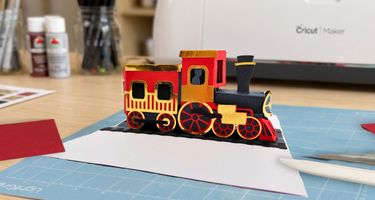
From 5 Prototypes to Pure Joy: The Story Behind the Train Pop-Up Card

Walk with me through the process of designing an adorable train pop-up card. Although the process was frustrating at times, the end result is that it will be a joyful assembly for you. Here is a look at the road to "READY".


READ MORE

Discover these five brilliant tricks to make interactive and captivating pop-up cards. Learn what designs are the best, paper to use; perfecting folds; what glue to use; and how to put all the right finishing touches on a pop-up card to delight those you love.


Read More

From Frazzled to Flow: Achieving Mindfulness Through Paper Crafting

What if I told you there was a simple solution to getting more "flow" in your life? Enter paper crafting. Not only is it a creative outlet, but it can also lead you to a state of "flow", which can lead to greater calm and even happiness. In this article, we'll dive into the connection between paper crafting and flow, explore the benefits of finding your flow, and provide techniques for staying present during the crafting process. So grab some paper – let's get started!


Read More

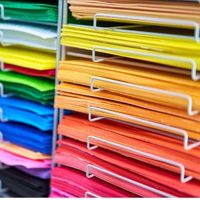
Ultimate Guide to Cardstock

Many of you have asked about the best papers to use for our pop-up designs, so I've put together a handy guide based on my own experiences. In this quick read, you'll discover why acid-free paper is a must for long-lasting cards, and how the right cardstock weight can make all the difference in your projects. I'll also share my love for textured paper and how it can add an extra dimension to your creations. Plus, you'll learn why I always keep some high-quality glitter and metallic cardstock in my stash, despite their challenges.


Read More

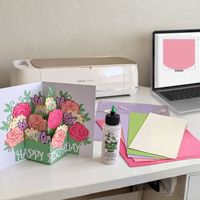
Pop-up cards are a delightful way to add surprise and dimension to your handmade greetings. With a little cutting, folding, and creativity, you can create eye-catching cards that your friends and family will treasure.


READ MORE

Create Festive Magic with Easy-to-Make Holiday Cards

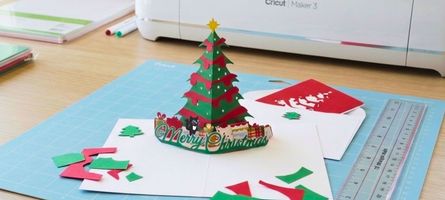
The holiday season is the perfect time to add a special, personalized touch to your greetings. With Bella Carta Design's easy-to-make SVG templates for your cutting machine (like Cricut or Silhouette), you can create professional-quality, beautiful cards that your friends and family will cherish. Forget generic store-bought cards—a handmade greeting instantly makes the recipient feel special and adds a memorable touch to your holiday wishes.


READ MORE

DIY Christmas Delight

Ready to ditch the flimsy store-bought tags? With the Bella Carta Design Printable Watercolor Christmas Tags you can create stunning, layered gift tags right at home. This project prints and cuts folded Christmas tags featuring four beautiful layered watercolor images.

Here’s a quick guide to using your cutting machine and bringing these beautiful printable gift tags to life!


READ MORE

Simulated Embossing: Luxury Textures with Layers

I’ve often been accused of being born 100 years too late! I’m Laura, and I’ve spent years mathematically perfecting "Simulated Embossing" so you can skip the frustration and go straight to the joy. I’ve done the engineering; you do the heart-work. Let’s move from frazzled to flow by building luxury textures, layer by layer. Ready to experience the "Joy of the Stack"?


READ MORE

FAQs (Frequently Asked Questions)

How do I upload your SVG files in Cricut Design Space?

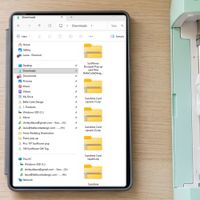
1 In Cricut Design Space open a new project first. 2 Click the green “New Project” button.\ 3 Select the “Upload” option. 4 Click the “Upload Image” button. 5 Click the “Browse” button, select the file and click “Open” or drag and drop a file onto the page. 6 A picture of the file is shown under “Prepare to Upload”. Click the “Upload” button. 7 Click the file picture you want and click “Add to Canvas”. 8 This will load the template into your new project in Design Space. You can now follow my template instructions to complete the project.

How can I use a Cricut score tool with your designs?
If you have a Cricut machine with a scoring tool, you will need to do a little prep work before the designs will score correctly. 1 In Cricut Design Space ungroup all the grouped objects down to the grouped score lines. 2 Select each score line and change their "operation" to SCORE in the options at the top of the project space. 3 Now attach each set of score lines to their respective cutting piece. 4 Check if all score lines are attached correctly by going to "Make". If there is a red mat with only lines on it, this means there are score lines that still need to be attached to their pieces.
Why do I get a red mat with only lines on it when I MAKE your design in Cricut Design Space?
This red mat just means that you need to do a little prep work before the designs will score correctly by your Cricut. 1 In Cricut Design Space ungroup all the grouped objects down to the grouped score lines. 2 Select each score line and change their "operation" to SCORE in the options at the top of the project space. 3 Now attach each set of score lines to their respective cutting piece. 4 Check if all score lines are attached correctly by going to "Make". If there is a red mat with only lines on it, this means there are score lines that still need to be attached to their pieces.
Brother Scan N Cut error when importing SVG files into Canvas Workspace
Some Scan N Cut users have received the error message "ERRS09" in Canvas Workspace when importing some SVG files. I am working on resolving this issue. The only workaround I know of is to open the SVG file in another application, such as the free vector design program, Inkscape. Then print out each piece of the design and scan them into your Scan N Cut.

Project Instructions

click below to find instructions to make our 3D SVG projects.

Tutorial: Butterfly Pop-Up Card

Don’t know where to start when you need a really awesome interactive card for someone special? Check out my stunning Butterfly Pop-Up Card. Watch me assemble it in this 90 second YouTube video.

Tutorial: Butterfly Gift Box

Laura’s Kindness Corner

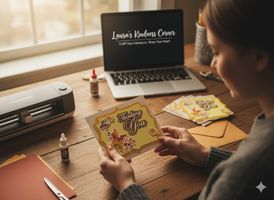
Welcome to Laura's Kindness Corner! Grab your favorite mug, settle in, and let's talk about something wonderful: using our paper-crafting passion to genuinely make the world a better place. If you've ever felt that little pull to do more with your gorgeous card stash, you're in the perfect spot! This is your go-to resource for turning your crafting table into a kindness assembly line. You'll find easy how-to guides, inspirational stories, and all the verified organizations—like Cardz for Kidz and Bring Smiles to Seniors—that are just waiting for your beautiful handmade cards. Let's start spreading some real, tangible joy together!