MAKE YOUR OWN BUNDLE - BUY ANY 3 SVGS - GET 30% OFF

Laura Shirley | 8 hours ago

How to Download & Unzip Your SVG Files: A Friendly Step-by-Step Guide

Hi friend! If you’ve ever bought a digital paper craft design, clicked "download," and wondered, "Wait... what is a ZIP file, and where are my actual SVG cut files?"—you’re in the right place!

When you're eager to start cutting a new pop-up card or paper lantern on your Cricut or Silhouette machine, hitting a technical roadblock can feel frustrating. Unzipping your files is quick, simple, and something you will master in no time. Just stay with me, and I’ll walk you through it below:

Why Do Craft Files Come in a ZIP Folder?

Think of a ZIP file as a small, cozy, digital package. Because 3D paper crafting templates can include several parts—formats for different cutting machines and printable PDF instructions—bundling them into a single compressed folder keeps every piece safe and organized during download.


Once you download the ZIP folder, you just need to "unpackage" (or extract) it to reach your ready-to-use cut files. Let's walk through exactly how to do that on your device!


Step 1: Download Your Purchase

Right after completing your order on bellacartadesign.com, your files are delivered instantly in two ways:


On-Screen Confirmation Page:

Click the download button directly on your order confirmation screen.


Automated Email:

You will receive an instant confirmation email from notifications@ecwid.com containing your direct download links.

(Be sure to save your files within 72 hours of receiving the email!)

Clicking your download link saves the ZIP file to your device's default location—usually your Downloads folder.


Step 2: Unzip (Extract) Your SVG Cut Files


For Windows Computers (Windows 10 & 11)

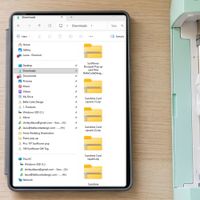
Open your Downloads folder (or the location where your file was saved).


Locate the ZIP folder (it looks like a folder with a tiny zipper).


Right-click the ZIP file and select Extract All... from the menu.


Choose where you would like the unzipped folder saved (or leave it at the default location) and click Extract.


A new, regular folder will open containing all your extracted SVG files, PDFs, and instructions!


For Apple Mac (macOS)

Open your Downloads folder.


Double-click the ZIP file.


MacOS will automatically extract the contents into a standard folder right beside the ZIP file. Double-click that new folder to access your SVG cut files!


For iPad & iPhone (iOS)

If you use Cricut Design Space or Silhouette Studio on a mobile device or tablet, unzipping takes just one tap:


Open the built-in Files app on your device.


Tap Downloads (or navigate to where you saved the download).


Tap the ZIP file once. Your device will automatically create an unzipped folder in the exact same location.


Tap the new folder to see all your cut files and PDFs!


For Android Mobile & Tablets

Open your device’s Files (or My Files) app.


Tap Downloads and locate your downloaded ZIP file.


Tap the ZIP file, then tap Extract (or Unzip).


Your extracted files will now be ready to upload directly into your cutting machine app!


Quick Tips by Web Browser

Depending on which browser you prefer, your download progress will display a little differently on your screen:


Google Chrome:

Click the link to download your ZIP file. The file will appear in the top-right corner (or bottom bar) of your browser window. Click the folder icon next to the file name to open its folder location directly.


Safari (Mac/iOS):

Click the download link. You will see a small down-arrow icon in your top toolbar showing download progress. Click that icon, then click the magnifying glass to view your ZIP file in Finder.


Microsoft Edge:

Click the link to start your download. Your file will show up in the downloads menu near the top right. Hover over the file and click the folder icon to jump straight to your

Downloads

folder.


Mozilla Firefox:

Click the download link, select Save File, and click OK. Click the download arrow in the top right toolbar to open the folder where your file was saved.


Where to Go From Here!

Now that your files are extracted and sitting safely in a regular folder, you are all set to start crafting!


Need help importing to Cricut?

Head over to our step-by-step guide on

How to Upload SVG Files in Cricut Design Space.


Avoid cutting issues!

Check out

How to Avoid the RED MAT: Setting Score Lines in Cricut

to ensure all your fold lines cut and score cleanly.

If you ever run into a technical snag or have questions about a design, please don't hesitate to reach out to me directly at laura@bellacartadesign.com. I am always here to cheer you on and make sure your crafting journey is joyful and stress-free!


Happy crafting,

Laura

Founder & Designer, Bella Carta Design

Let’s create what matters — together.

More Posts

The Ultimate 3D Paper Crafting Glossary: Your Friendly Guide to Cricut  Silhouette TermsThe Ultimate 3D Paper Crafting Glossary: Your Friendly Guide to Cricut  Silhouette Terms
The Ultimate 3D Paper Crafting Glossary: Your Friendly Guide to Cricut Silhouette Terms

Hello there, creative friend! 💖

If you’ve ever looked at a gorgeous, intricate 3D paper project and thought, "That looks absolutely magical, but what on earth do all these terms mean?"—please know you are not alone! When I first bought my electronic cutting machine, I felt completely overwhelmed by letters like "SVG," words like "basis weight," and software buttons I didn't understand. I made every "rookie" mistake in the book so you don’t have to!

My mission at Bella Carta Design is to make 3D paper crafting joyful, accessible, and completely frustration-free. Think of this glossary as your cozy, trusted crafting companion. Grab a warm cup of tea, and let's demystify these terms together so you can start creating cute crafts with paper and heartfelt hand craft gifts today!

Instructions for Downloading Zip Files
<p>How To Avoid the RED MAT in Cricut</p><p>How To Avoid the RED MAT in Cricut</p>

How To Avoid the RED MAT in Cricut

Step by step instructions on setting score lines


If you’ve ever uploaded an SVG file and hit "Make It" in Cricut Design Space only to see that dreaded red mat with all the scattered lines, you aren’t alone! It’s one of the most common hiccups when working with SVG files in Cricut Design Space.

Usually, this happens because the software thinks your score lines are meant to be cut lines, or it doesn't realize those lines are supposed to stay stuck to your project. Don't sweat it—here is a quick, friendly guide to getting those files fixed and your project back on track.


Let’s Get Crafty! 7 Cutting Machine Tips I Wish I Knew Before I StartedLet’s Get Crafty! 7 Cutting Machine Tips I Wish I Knew Before I Started
Let’s Get Crafty! 7 Cutting Machine Tips I Wish I Knew Before I Started

Hey there, friend! Laura Shirley here, and I am so glad you stopped by. Opening up a brand-new cutting machine is such a thrilling moment, but if I’m being completely honest, it can feel a little intimidating, too. When I first brought home my Silhouette Cameo 4, I had grand visions of instantly creating beautiful hand craft gifts, interactive pop-up cards, and charming home decor.


Spoiler alert: my early attempts mostly turned expensive cardstock into colorful confetti!

Whether you're opening up your machine for the very first time, searching for fresh cricut inspiration, or planning cute crafts with paper to fill your weekend, I’ve made all the "rookie" mistakes so you don’t have to. From setting up your mat in cricut space to finding the best svg files for cricut, silhouette, or laser tools, these seven tips will take you from "What on earth does this button do?" to crafting with total confidence. Grab a warm cup of coffee or tea, and let’s jump in!

<p>FAQs:</p><p>FAQs:</p>

FAQs:

Find solutions for paper craft cutting and software issues with Silhouette, Cricut, Brother ScanNCut and others. Find craft ideas for hand craft gifts, cricut projects, 3d svg files, and pop up card svg setups.

<p>Project Instructions</p><p>Project Instructions</p>

Project Instructions

Here you will find step-by-step instructions and video tutorials on how to make our 3D SVG paper craft projects for Cricut, Silhouette and laser cutters.